How to create your first Telegram bot with BotFather
MyAgens is commanded from Telegram through a bot you own. You create that bot with BotFather, Telegram's official tool for making bots, and it takes about a minute. The easiest way is BotFather's Mini App: a small guided screen inside Telegram with buttons and forms, no commands to remember. This guide walks you through it, plus one setting worth flipping so nobody but you can talk to your bot.
What is BotFather?
BotFather is the official Telegram bot that creates and manages other bots. It hands you a bot token: a secret key MyAgens uses to send and receive messages as your bot. You can drive BotFather two ways: through its Mini App (recommended, shown below) or by typing commands in the chat (the classic way, further down).
Create your bot in the Mini App
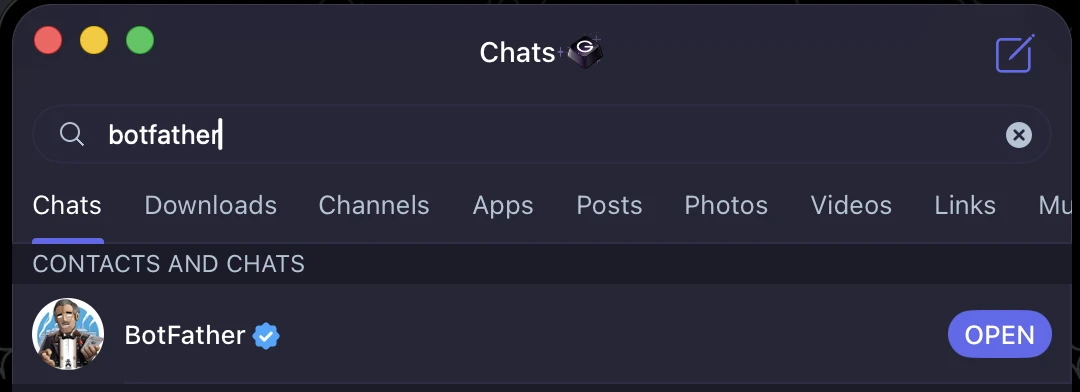
- Open Telegram and search for botfather. Pick the verified account (blue checkmark) and press OPEN to launch the Mini App.
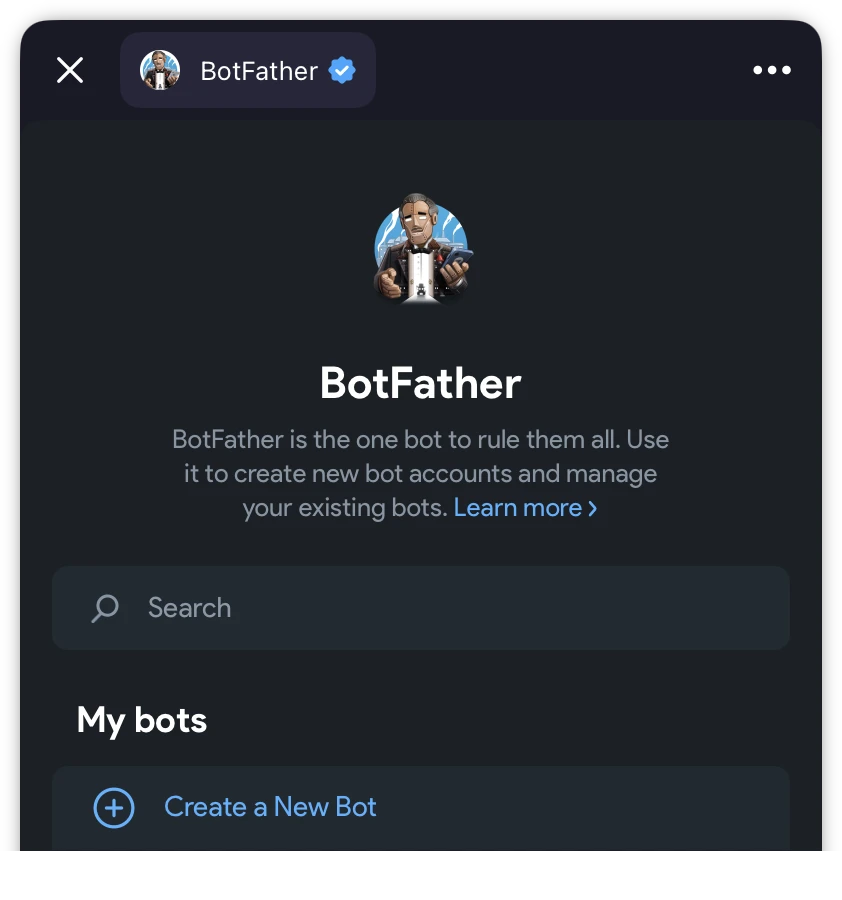
- Under My bots, tap Create a New Bot.
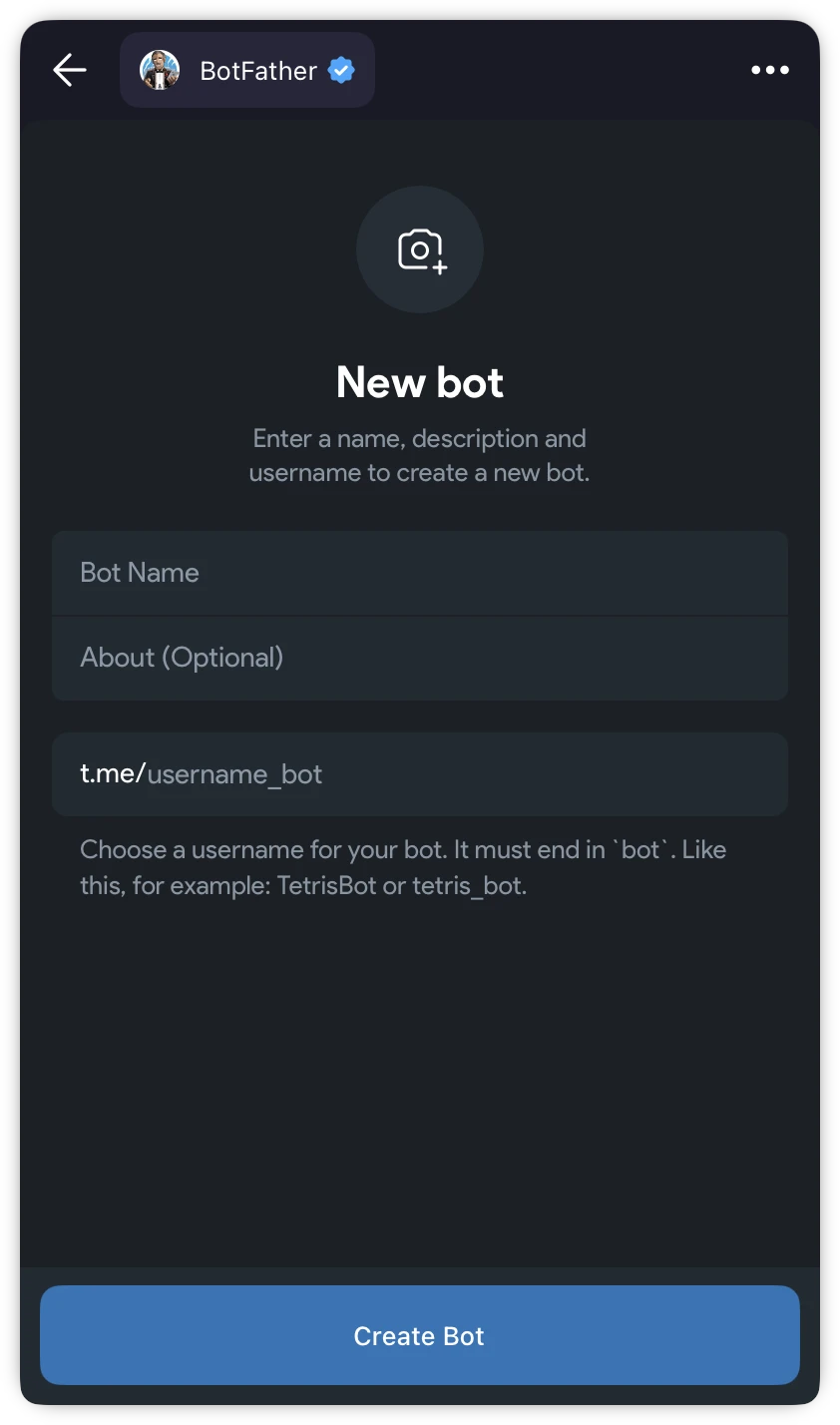
- Fill in the form. Bot Name is the display name and can be anything, for example
MyAgens. The username must be unique and end inbot, for examplemy_agens_bot. Tap Create Bot.
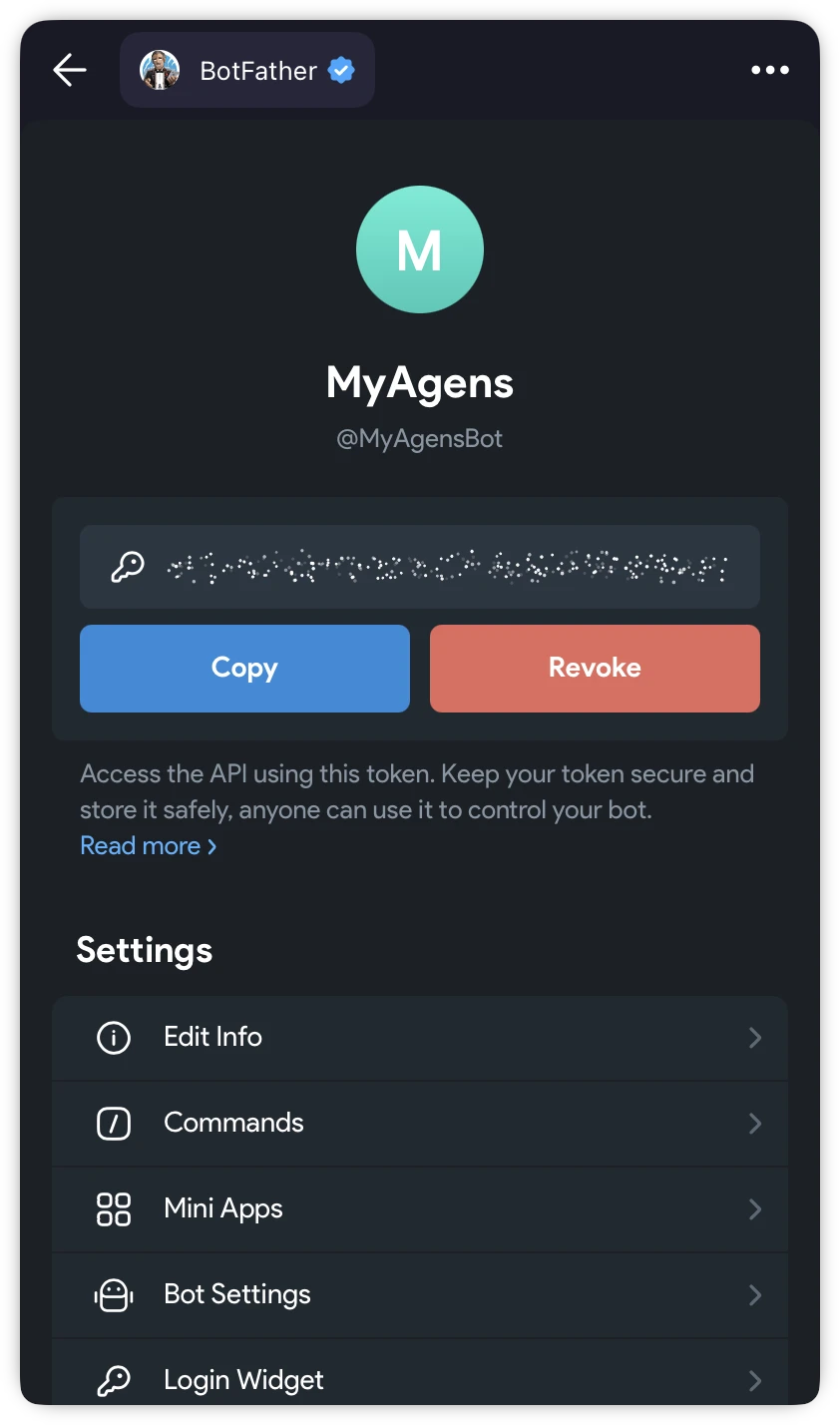
- Your new bot's page opens with the token right at the top. Tap Copy. That string is what the MyAgens setup asks for.
Lock the bot to your account
Recommended while you are still on the bot's page: open Bot Settings, scroll to Access, and turn on Restrict bot usage. Allowed users defaults to You, which is exactly right for MyAgens: with the toggle on, Telegram itself refuses everyone else, so strangers who stumble on your bot cannot even start a chat with it.
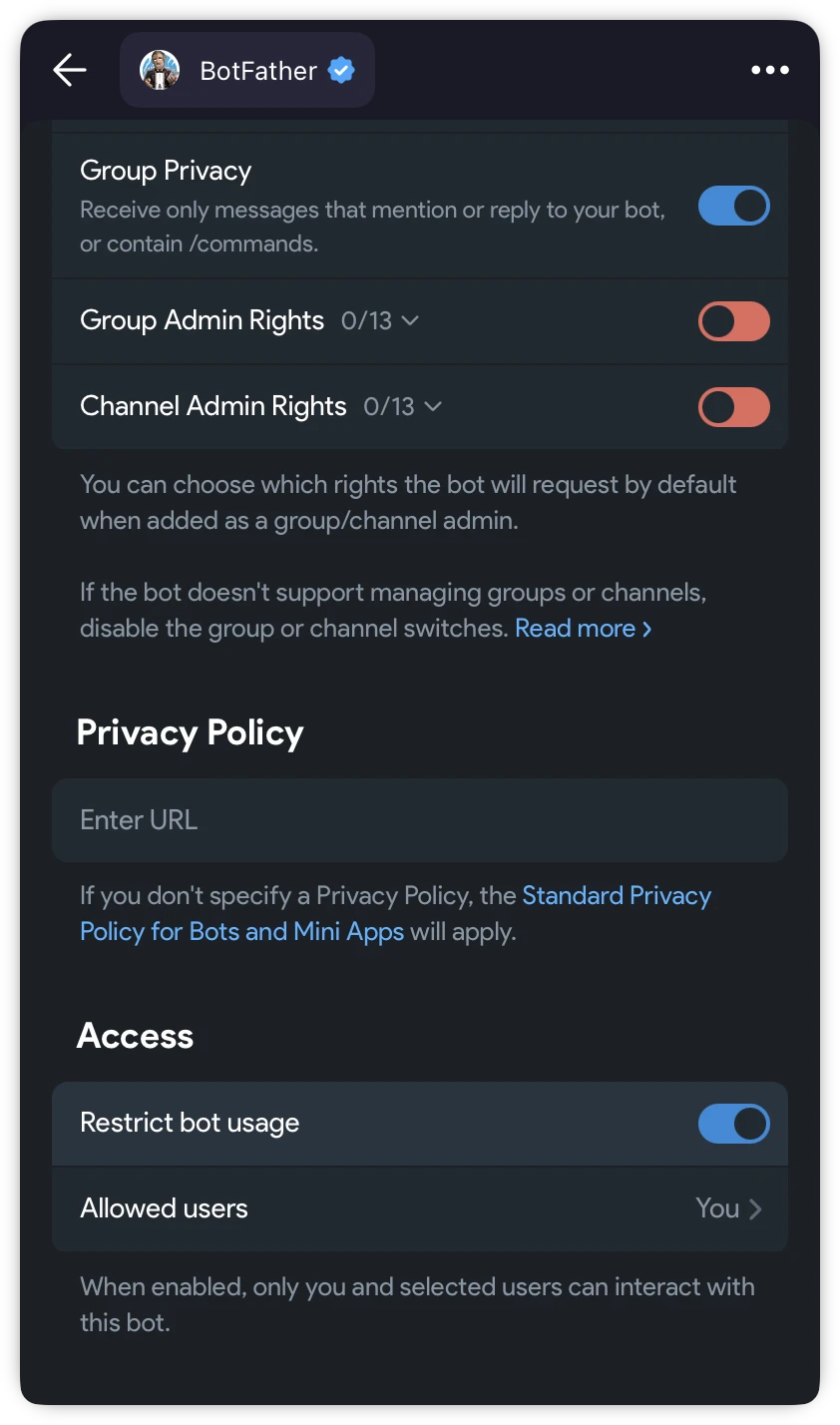
MyAgens keeps its own allow-list on top of this (it answers only the Telegram user IDs you approve), so you end up with two independent locks: Telegram blocks outsiders at the door, and MyAgens ignores anyone not on its list.
The classic way: commands
Prefer typing? The command flow still works and ends in the same place:
- Open the chat with @BotFather and send
/newbot. - Type a name for your bot when asked.
- Choose a username ending in
bot. - BotFather replies with your bot token. It looks like
123456789:AAExxxxxxxxxxxxxxxxxxxxxxxxxxxxxxxxx.
Keep your token secret
Your bot token is a password. Anyone who has it can control your bot. Do not paste it into public chats, screenshots, or issues. If it ever leaks, open your bot in BotFather and tap Revoke next to the token (or send /revoke in the chat) to generate a fresh one.
Connect it to MyAgens
The browser setup page (macOS, Linux, and Windows) asks for the token and verifies it live, then you press START in your new bot's chat and the page recognizes you, so there are no IDs to look up. The terminal-only wizard (headless machines, SSH) asks for the token and your numeric user ID inline; the user ID guide shows where to find it.
Managing the bot later
Open BotFather's Mini App and your bot is listed under My bots: edit its name and picture, revoke the token, or change the access list any time. The old commands (/mybots, /setname, /setuserpic, /revoke) do the same from the chat.
Get MyAgens
Self-hosted and open source. Install it on macOS, Linux, or Windows, then command your fleet of AI agents from Telegram or Slack.
More in Telegram